
When Divi was launched in 2013, it was one of the first drag-and-drop page builders for WordPress. In 2016, the introduction of Divi’s Visual Builder — alongside Elementor, which was launched the same year — revolutionized the way page builders worked. For the first time, you could build directly on the front end of your website, allowing you to see exactly how your page would look to visitors while you were creating it.
In 2019, Divi introduced the Theme Builder, making it possible to design every part of your website within Divi, including headers, footers, and templates.
In November 2022, Elegant Themes (the company behind Divi) announced that a completely new version of Divi was in development: Divi 5. It would take until February 2026 before Divi 5 was finally officially launched. Was it worth the wait? Let’s find out!
What’s new in Divi 5?
In the original announcement, it was stated that Divi 5 would not initially introduce any new features. The goal of this update was to completely rebuild Divi from the ground up on a new, future-proof technical foundation. However, the development of Divi 5 took much longer than expected, and it would take nearly two years before users got access to an alpha version they could test on their own websites.
Although this version introduced a more modern and faster interface, it didn’t add any new features. In fact, several existing Divi 4 features were still missing. Meanwhile, Divi’s competitors did not stand still. As a result, many users switched to page builders offering more features, such as Greenshift, Bricks, and Elementor.
The Divi Feature Swap
That’s why, in January 2025, Elegant Themes introduced the Divi Feature Swap. A number of less popular or less important features from Divi 4 were postponed or removed, and the time saved was redirected into developing several highly requested new features instead. Well… they certainly didn’t disappoint!
Custom breakpoints for Divi 5
Just a few weeks later, Elegant Themes announced the first new feature — and it was an important one: custom breakpoints.
Breakpoints determine at which screen widths specific layout changes take effect, such as switching to a mobile menu instead of the desktop menu, or stacking columns vertically instead of keeping them side by side.
In Divi 4, there were only three fixed breakpoints. The first was for desktop, the second for tablet at 980px, and the third for mobile at 767px.
This was quite limiting. For example, the desktop menu often didn’t display properly on tablets in landscape mode, which typically use resolutions like 1180px or 1024px. However, Divi 4’s tablet breakpoint was fixed at 980px, making it impossible to switch to the mobile menu on tablets in landscape.
With the new customizable breakpoints, you can easily change that 980px value to 1024px or 1180px, or even add additional breakpoints. Divi 5 supports up to seven different breakpoints in total.

Divi Presets
Presets are an important feature for keeping your styling consistent and maintaining a clean, scalable workflow. With a preset, you can create a standard design that can be reused across your entire website. If you update a preset in one place, those changes are automatically applied everywhere the preset is used.
More advanced developers will recognize this concept as CSS classes, although Divi’s preset system is somewhat less flexible than a full class-based system like the ones used in builders such as Bricks and Greenshift. For example, you can only apply one preset at a time to a module or setting.
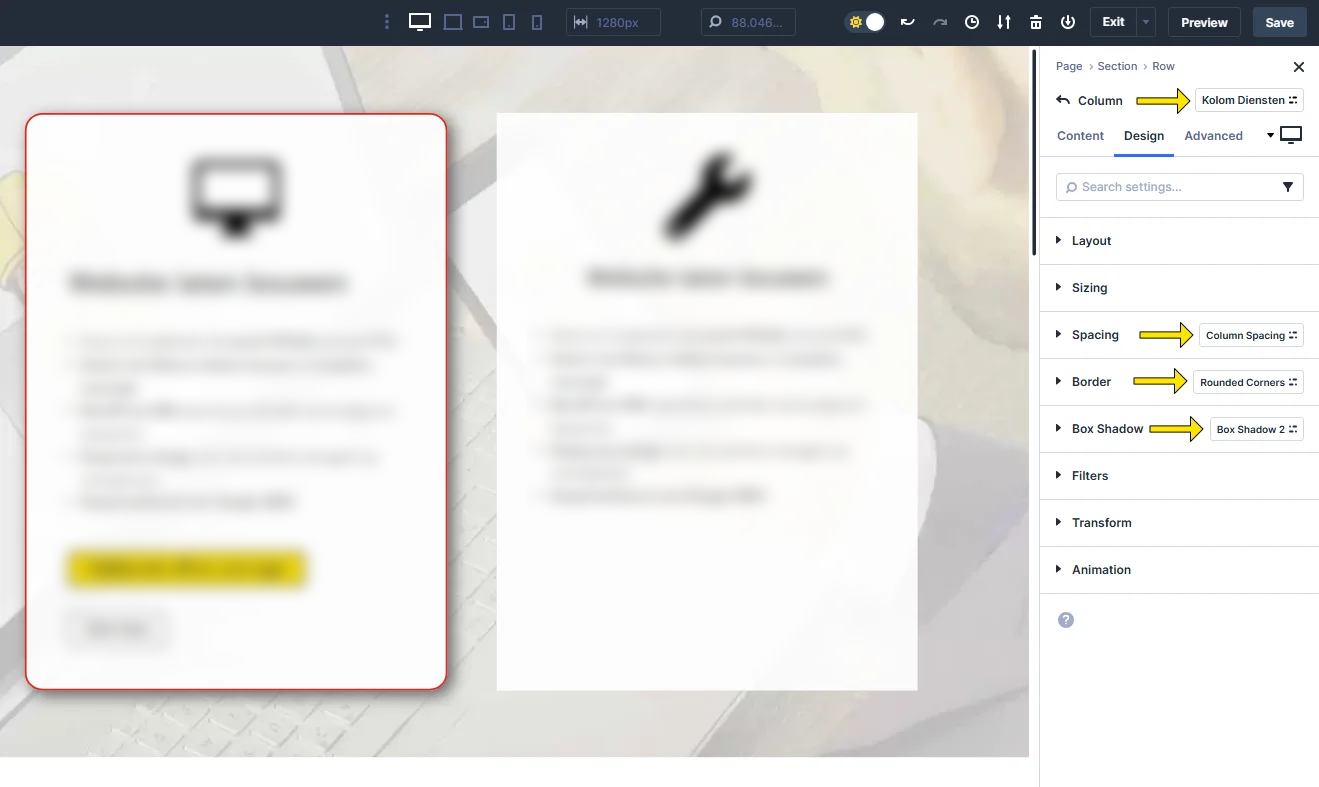
Divi 4 already included presets, but Divi 5 takes them to a whole new level with option group presets.
In Divi 4, presets could only be created for an entire module. In Divi 5, however, you can create presets for almost any individual styling option. This means you can create presets for things like backgrounds, borders, shadows, and more. You’re no longer limited to the same module type either — presets can now be used across any module (or section, row, or column) that supports the relevant styling option. You can even use multiple presets on a single element.
Variables, relative HSL colors, and advanced CSS units
The following updates were also focused on building consistent and maintainable websites by using variables and advanced CSS units such as clamp and calc.
For example, you can create a variable called “border radius” that you can reuse anywhere you want rounded corners. This way, you don’t need to remember or look up the exact value you used before — you simply use a meaningful name (or select it).
Even better, variables give you global control. If you later decide you want your corners to be more or less rounded, you only need to change the value in one place, and it will automatically update everywhere the variable is used.
Of course, Divi wouldn’t be Divi if they didn’t make this as easy as possible, so they also introduced a variable manager.
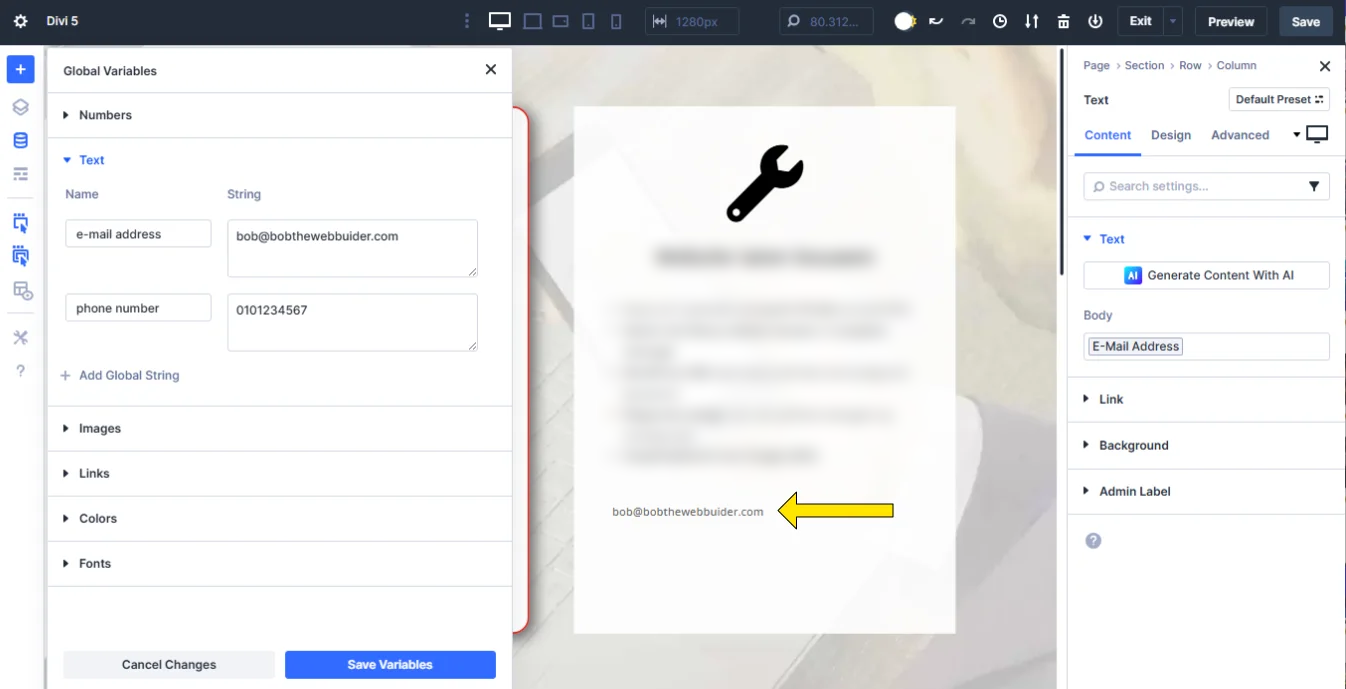
But Divi goes one step further: you’re not limited to CSS properties. You can also define global text values and links, such as your phone number or email address, as well as images like your logo. If your phone number, email address, or logo ever changes, you only need to update it once in the variable manager, and it will automatically update everywhere it’s used across your website.
Divi 5 also introduces a completely new color management system, also based on variables (and HSL colors).
Build any layout you want with nested rows, module groups & nested modules, flexbox and CSS grid controls
Presets and variables help you build maintainable websites, but what about flexibility?
In Divi 4, you were limited to just 20 row structures. While this was sufficient in most cases, it wasn’t very flexible. On top of that, all columns automatically stacked on tablet and mobile breakpoints, meaning it wasn’t possible to create multi-column layouts on smaller screens.
Divi 5 first introduced nested rows, allowing you to add new rows inside the column of another row. This gives you much more flexibility when building layouts. However, you still couldn’t choose different column structures per breakpoint.
That issue was finally resolved two months later when Divi finally introduced flexbox controls, and later on also CSS grid. In addition, Divi 5 introduces a new Group Module — a container that allows you to group multiple modules together and control their layout using flexbox or grid.
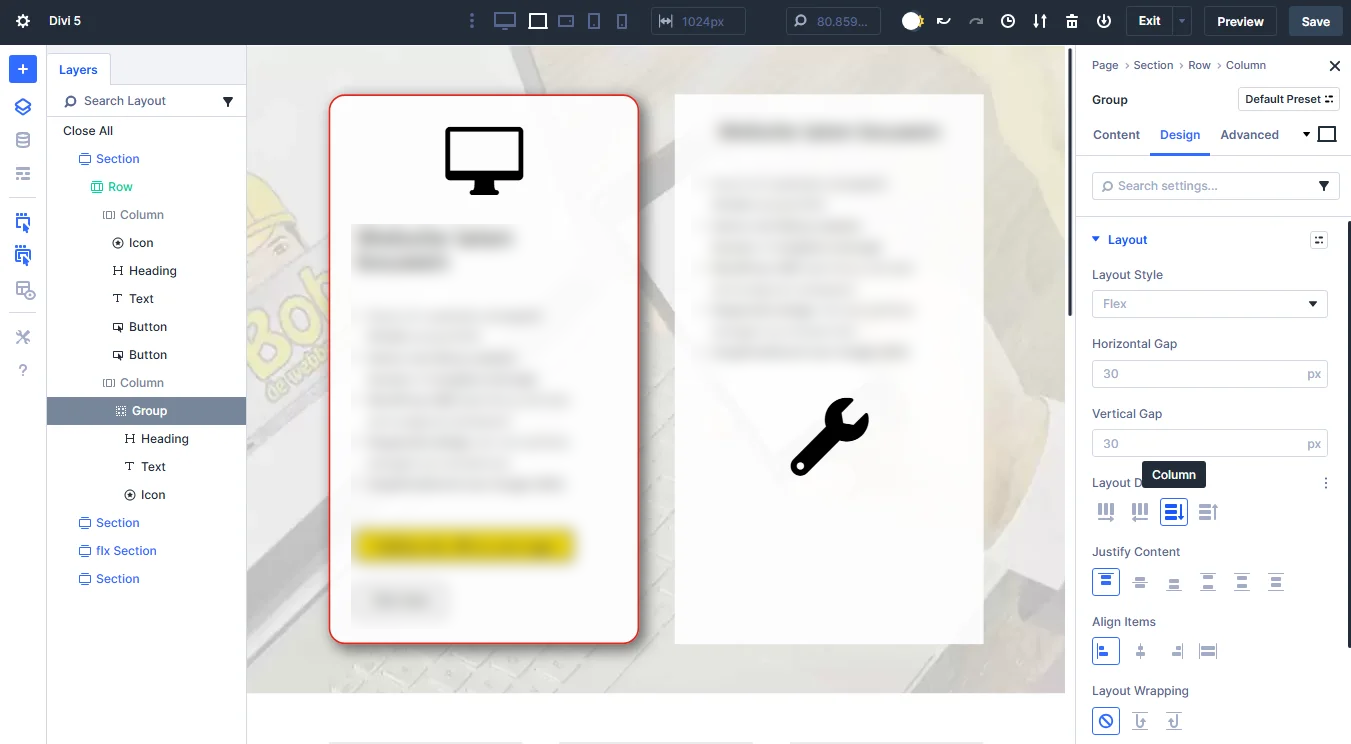
But it got even better when Divi introduces Nested Modules a few months later, finally giving Divi users the ability to nest any module inside another module. Now, we can finally add anything we want in a tabs module, or an accordeon module.
Loop builder
Modern, maintainable websites use dynamic content, which means content is managed from a single source (like variables).
The most common example of dynamic content in WordPress is blog posts. You manage your posts in one central place — under “Posts” in the WordPress admin — and they are then automatically displayed on your news page (and any other pages where you choose to show them, for example on the homepage as I do) using Divi’s Blog Module. A grid like this is called a “loop”.
The same applies to WooCommerce products. You manage them under the “Products” section in the WordPress admin, and a Products Module allows you to display a grid (or loop) of all your products on your shop page, product pages, and more.
In Divi 4, you could already build custom templates for individual posts and products using the Theme Builder, but the blog and product grids were very limited. You could only enable or disable a few elements and choose between a single-column or three-column layout — and that was basically it.
For example, it wasn’t possible to change the order of elements (such as displaying the post title above the featured image), let alone add extra elements like custom fields.
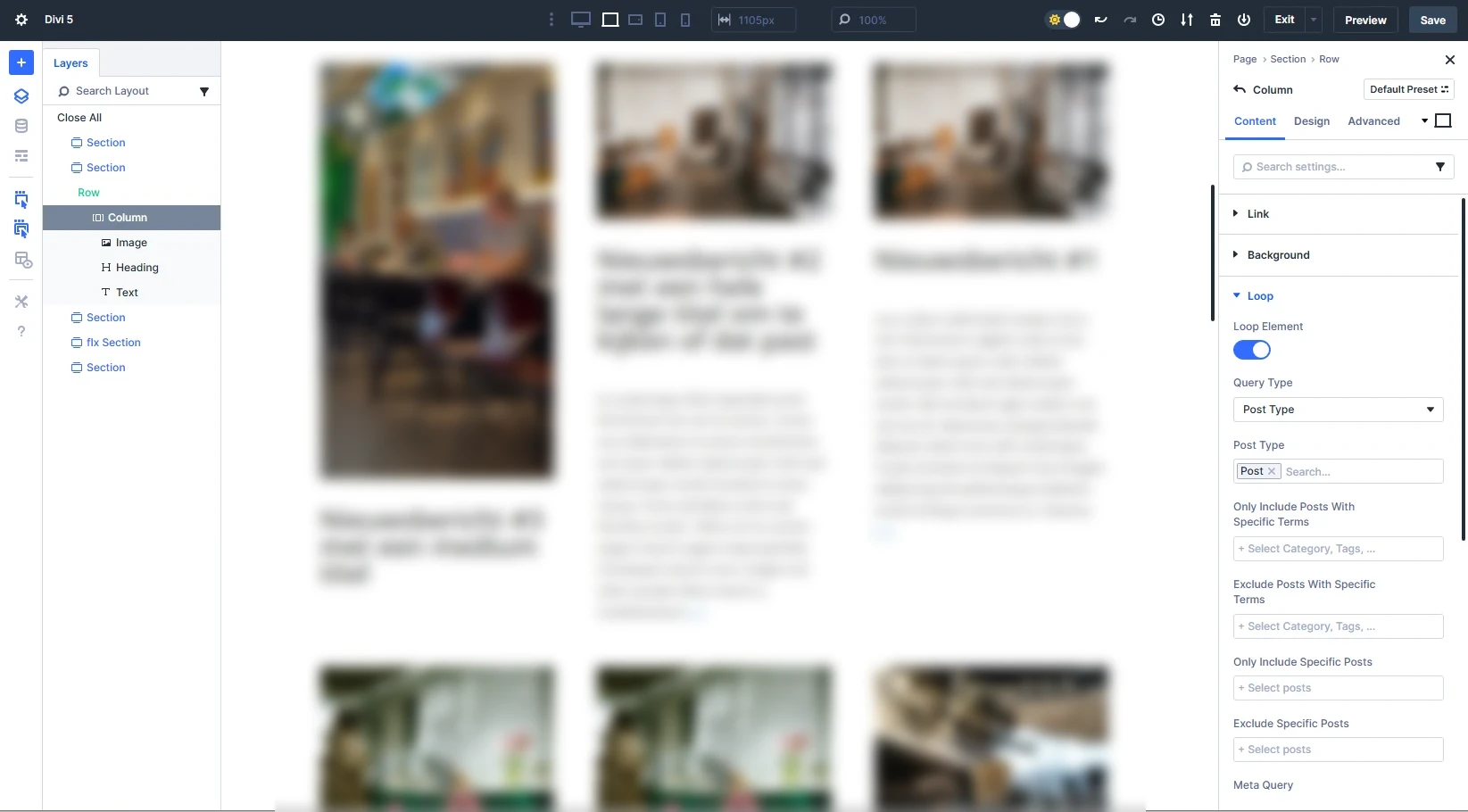
The new Loop Builder in Divi 5 changes all of that. You can now build your loops (grids) exactly the way you want, using any module you like.
On top of that, you can now also add custom fields. For example, I can create a custom post type for my portfolio using the free Advanced Custom Fields plugin. This allows me to add custom fields such as a website link, description, and client name, and display all of them in my portfolio grid.
Interactions
Interactions was a surprise feature that wasn’t announced initially, but it turned out to be quite powerful. With interactions, you can control and manipulate elements based on user behavior.
For each interaction, you can define a trigger and an action. In the example on the right, I’ve set a “click” trigger, and the action is to reveal a section that is initially hidden. This finally makes it possible to build popups in Divi.
Other available triggers include “mouse enter” and “mouse exit,” which allow you to create hover effects, as well as “viewport enter” and “viewport exit” for scroll-based interactions. There is also an “on load” trigger.
The available actions include showing or hiding an element, adding or removing a preset, and — for more advanced users — adding or removing custom attributes and cookies. You can also scroll to another element, or use “mirror mouse movements” for interactive effects that respond to cursor movement.

Why is Divi so popular?
So Divi 5 has added a lot of new, much-needed features to bring Divi back into the game. But Divi has formed the basis for millions of websites for years. What makes Divi so popular?
As I wrote at the beginning of this article, the Divi Builder is an incredibly powerful drag & drop front-end page builder that allows you to adjust everything live on the front end of your site so that you see the effect of your changes immediately.
So when you adjust things like colors, borders, backgrounds, margins/padding, animations, etc., you see the page change in real time, and you see it exactly as visitors to your website see it. Adjusting text is a matter of clicking and typing.

The Divi Theme Builder
When I say the Divi Builder lets you adjust everything, I mean everything; since the launch of Divi 4, the builder can also be used to build your own header, footer and all kind of templates like your posts archive, WooCommerce product page, 404 page etcetera. That takes the Divi Builder from a page builder to a complete theme builder!
The most important part for any template builder is dynamic content. Dynamic content means the data is taken from the database. So when you’re building your blog template, you can add an image module and automatically insert the featured image from the post there. Next, you can add a text module and insert the post title there, and more text modules for the author, publish date, categories etc.
And when you build a WooCommerce product page, you can dynamically add the price, product info, reviews, related products etcetera anywhere you want.
You can have as many templates as you want, so e.g. you can have a separate template for the homepage which uses a different header from the global header, a different look for your blog posts or even a complete unique layout for a certain page, for example a landing page of your contact page.
Building a template works exactly the same as building a single page of post, so you can include any of the Divi modules (also in the header and footer). That gives you a lot of design freedom!

Divi comes with more than 40 modules
Divi modules are content elements. The module I’m typing this text in is a text module, the image next to this text is an image module and so on.
There’s a video module, an image gallery module, a Google Maps module, a contact form module, an e-mail opt-in module to get more subscribers on your mailinglist, a countdown timer module and a number counter, an image-, post- and video slider, an accordeon module, a testimonials module, pricing tables etcetera.
The modules are searchable so you can find the one you want easily, and even though they look quite nice out of the box, there are a lot of styling options available.
Styling options
Actually, Divi probably offers the most styling options of all the page builders I tried.
A few of the things you can adjust in the styling options are:
- The colors (you can set default colors in the theme settings and/or use global colors)
- Backgrounds (solid color, but also gradient, image or video for any element)
- Fonts
- Box and text shadow
- Alignment
- Min and max width and height
- Borders (including shape dividers)
- Color filters
- Transform options (rotate, skew, scale etcetera)
- Animations (both entry as on scroll)
- And so on
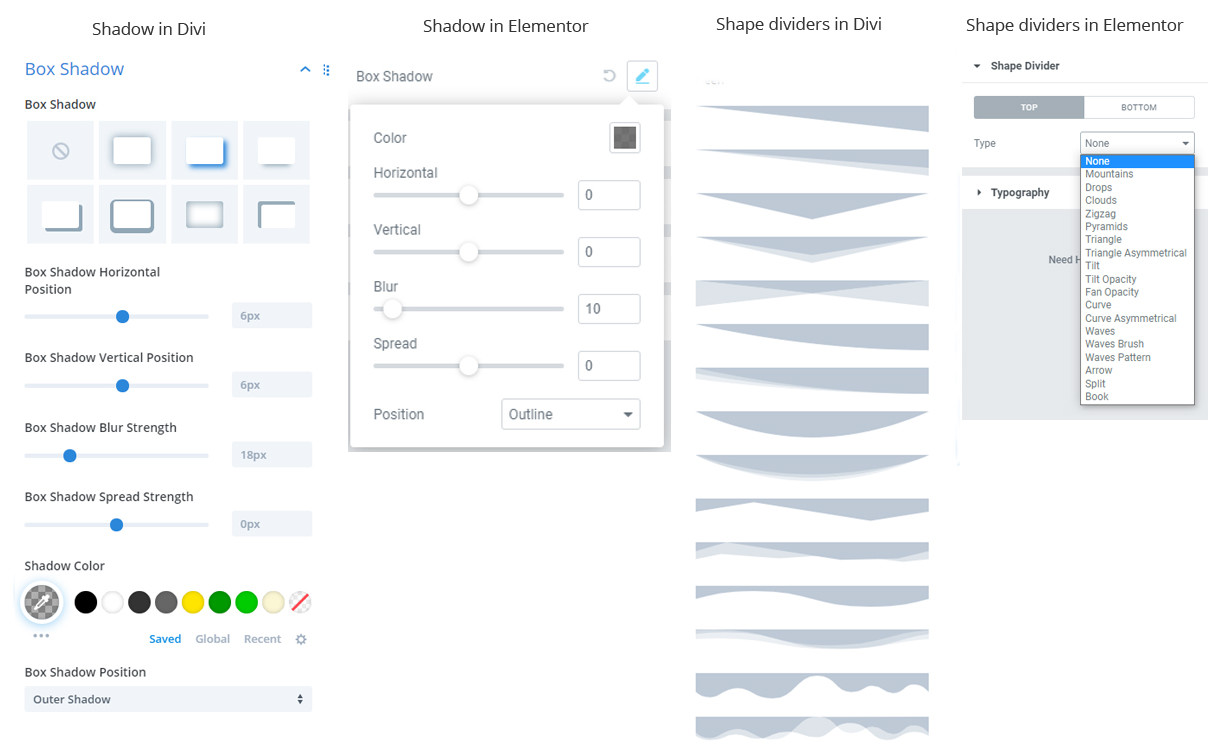
Moreover, those styling options are much more visually displayed than with other builders, which makes Divi very user-friendly. For example, if you want to set a shadow in Divi, you can choose from a number of presets, which you can then fine-tune. Other builders like Elementor don’t offer presets, you have to set the shadow values yourself (see the screenshot above). You can also see the difference when adding shape dividers; in Elementor and other builders, you only see the name of the shape (mountains, waves, clouds). In Divi, you just see an image of the shape dividers so that you can immediately see what it looks like.
Responsive content
You can style just about anything: any module, column, row, section… and you can even have different styles for different devices.
Just look at the first screenshot on the page to see how that works. With a lot of elements, you see a phone icon when you hover over it. When you click on that icon, you get 3 tabs: desktop, tablet and phone.
So for example, when you click that icon with the font-size setting, you can set a H2 header to be 26px on desktop, 22px on tablet and 18px on smartphones. But you can also adjust things like the alignment, the (background) color, borders, animation settings, transform options… and of course, you can choose to completely hide any element on mobile, tablet or desktop.
But what makes Divi really unique is what they call responsive content: you can’t only change the font-size and color of a text on mobile, you can even change the actual text (or image, video etcetera) itself! So if you heading doesn’t fit on mobile, you can change it to a shorter one just for mobile, while your desktop version stays as it was. Wow!
Divi also has a built-in simulator so you can quickly see how your page looks on a tablet or smartphone.
Global presets, the Divi Library and other time savers
So you’ve spend a lot of time to get that testimonial exactly the way you want it, and you want the same design on every other testimonial. Don’t worry, Divi has a bunch of handy features that make sure you don’t have to manually style every module again 🙂
First of all, you can copy a modules styling options and just paste all styling options on to the next module. You can also copy and paste just one styling option, like the h2 color for example.
Or you can extend the styling option(s) to all other modules of the same kind, so you can paste the styling options of a testimonial to all other testimonials on the same page (of just in the current row or section).
That’s a huge time saver, but those options only work on the current page. What if you have testimonials on every page, and you want all of them to have the same styling?
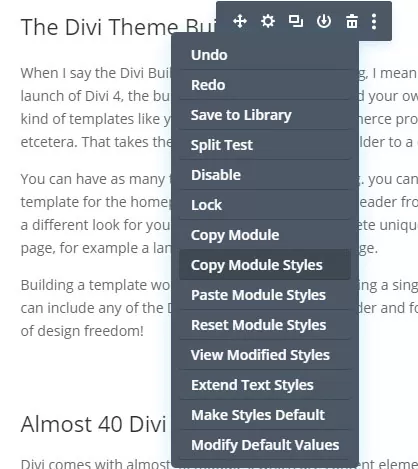
That’s where global presets come in. With global presets, you can save the current styling and extend it to all testimonials on your entire site!
You can have multiple presets for one module, so you can have a testimonial with a blue background, one with a yellow background and one with a red background, and set one of those as the default style for all new testimonials. Of course, you can also select a different saved style per module (or row, or section).
You can also save your design to the Divi Library, which is like the WordPress media gallery, but for Divi elements instead of images. You can store every element – from a button to a text block and from a row to a complete page layout, incl. all of its content and styling, in the Divi library.
From there, you can import the part you want on any other page on your website, and even export it to use it in another Divi website.
You can also save any element as a global element, which is great for things like buttons. If you change the color of a global button, the color of that button will change everywhere that specific button is used.
Layout Packs
Next to your own designs, you’ll also find a lot of layout packs in the library.
Layout packs are professionally designed templates that come with Divi by default.
A layout pack consists of several templates in the same design style. So for example, there’s a layout pack for a restaurant that contains a template for a home page, a contact page template, a menu page etc.
There’s a brand new layout pack added every single week, designs added every single week, so when you buy Divi, you don’t buy just 1 theme, you buy tens (and eventually hunderds) of themes in 1.
Browse all the Divi Layout packs.

Still not convinced? Here are some more reasons why people love Divi 🙂
- Divi has a very active development team, so new features are added on a regular base.
- If you’re into conversion optimization – which every commercial website owner should be – Divi leads is a really valuable and unique feature. E.g. with Divi leads, I can test the button below in multiple variants to see which variant performs best. I could make a button with a yellow background and a button with a green background, and Divi will show half my visitors the yellow button and the other half the green button. Divi leads will measure how many percent of my visitors click on the yellow button, and how many percent click on the green button, so I can choose the variant that gets the most clicks.
- Divi also has a built-in role editor, which allows you to set what users with a certain user role can and can’t do. Most other builder have a role editor too, but those are limited to 2 or 3 presets: a user role can use everything in the builder, or they can’t access the builder at all. Some builders offer a third option where users can only edit text and images. In Divi, you can control much more. For example, if you want your client to be able to adjust background colors, but not the column layout, the Divi role editor lets you set it just like that.
- Next to the Divi theme and the stand alone Divi builder plugin, your Elegant Themes membership also gives you access to a few cool plugins from which the Monarch social sharing plugin and the Bloom e-mail opt-in plugin are certainly worth the effort.
- Divi is supported very well. There’s an extensive help function with video tutorials, on the website but also within the builder itself, en they publish a lot of tutorials about all sorts of subjects on their blog. Also, the support team isn’t afraid to provide a custom code snippet to achieve something that can’t be done with Divi settings alone.
- Last but not least: the Divi license system is really favorable for website builders, designers, agencies and others who build websites on a regular base. For a one time investment of 249 dollar, you can use Divi and everything else from Elegant themes on an unlimited amount of websites, and you also get lifetime updates and support. Most premium themes and plugins licenses are only valid for one website, and / or you have to pay every year to keep getting updates and support.
That almost sounds to good to be true… Are there any downsides on Divi?
Of course, Divi isn’t perfect either. Some of the main cons are:
- The learning curve. The Divi Builder is a very extensive tool and it will cost you a fair amount of time to discover all its possibilities. Even though it’s quite user friendly, it will take some time to get used to it. It wasn’t love at first sight for me either 😉
- The price. As I said before, it’s really favorable for people that build websites regularly, but if you only want to build one or two websites, Divi is quite expensive compared to the competition. You can also choose to get a yearly Divi subscription at $ 89 for one year of updates and support, but you can’t keep a website running smooth without updates so you’ll need to keep your subscription active. In just 3 years time, the lifetime option is a more attractive option already.
- Divi has a built-in slider, but that’s really basic and can’t be compared to the extensive animated sliders that come with some other themes.


Leave a Reply