
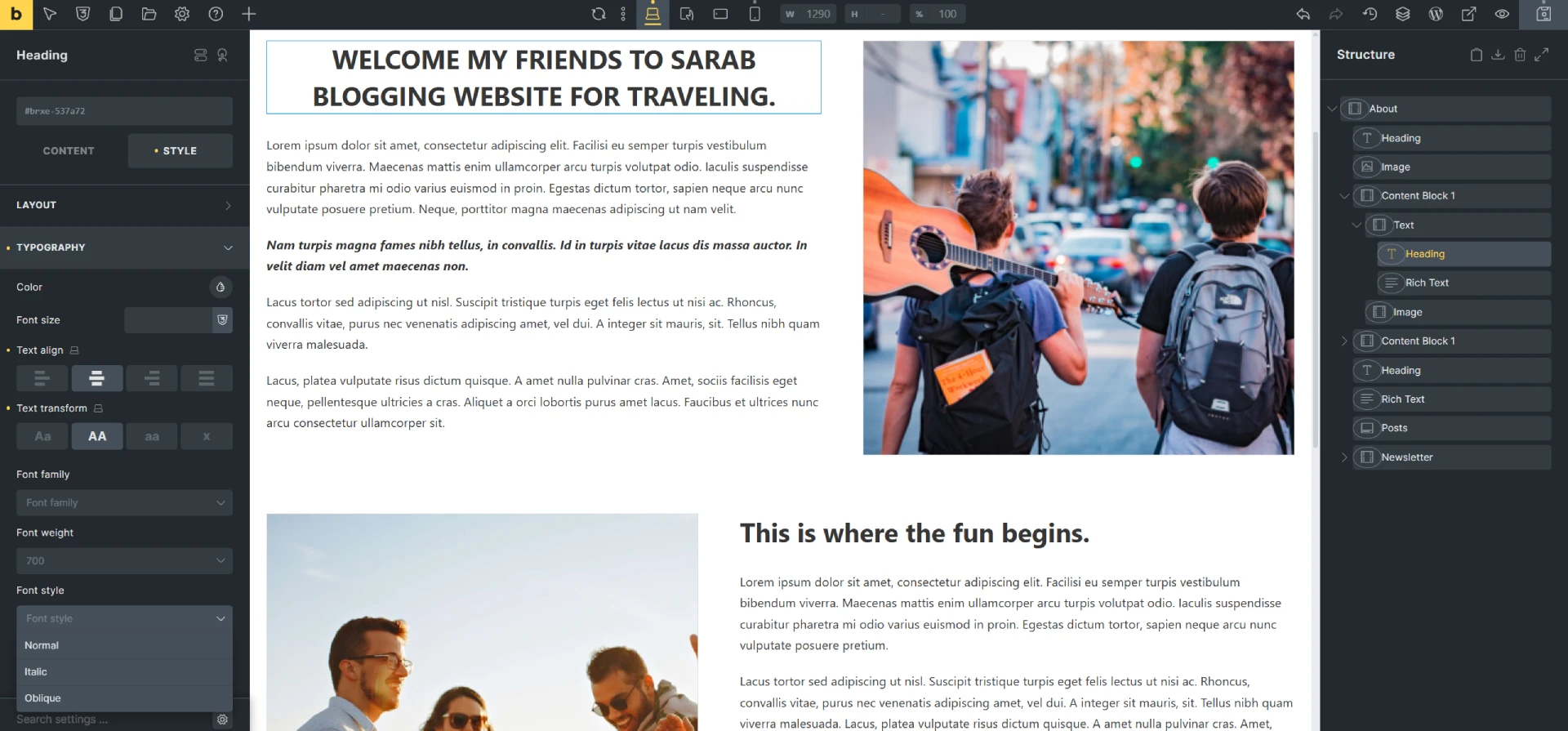
When Bricks Builder was launched in 2021, I wrote that it looked like an Elementor clone with a different skin, and that it also borrowed a few elements from Divi.
The settings panel, on the other hand, looked a lot like Oxygen, a builder primarily aimed at professional users. Personally, I’m not a big fan of Oxygen, and like Oxygen, Bricks Builder also uses quite a bit of CSS terminology, but for some reason the Bricks interface still felt more intuitive.
The king is dead… long live the new king!
At the time, Oxygen was the obvious choice for professionals. It used standard CSS terminology instead of invented labels designed to make things easier for beginners, and it allowed working with CSS classes for styling.
However, Oxygen was far from perfect. Users had been requesting certain features for years without much response. Then suddenly, Breakdance appeared — a new builder from the makers of Oxygen that finally included many of those long-requested features, but wasn’t aimed at professionals. Instead, Breakdance targeted the Elementor market: non-technical users who mainly want an easy experience with lots of ready-made modules and templates.
What they didn’t anticipate, however, was the wave of negative reactions from Oxygen users, who suddenly saw features they had been asking for for years appear in a different product. But since that product wasn’t designed for professionals, switching wasn’t really an option. On top of that, Breakdance wasn’t included in the Oxygen lifetime deal (well, users did get one year for free).
All of this led to a significant backlash and a major loss of trust, causing many Oxygen users to move to a builder that felt quite similar to Oxygen, included a class-based system, and also offered a very attractive lifetime deal… Bricks.
Bricks Builder is a theme with a built-in page builder
So just like Divi and Avada. Or rather, it’s a theme with a built-in theme builder, because with Bricks you can also create your own headers, footers, archive pages, single post templates, and more.
But then again, all other premium page builders can do that too… So does Bricks Builder offer anything I haven’t seen before?
Bricks Builder features
Class based workflow
This is the main reason why Bricks has become the standard for professionals today. A class-based workflow means that styling is primarily handled using CSS classes. This allows you to define the styling of something like a button or a card in just one place.
After that, you simply assign the relevant class name to an element to give it the same styling. And if you later change the styling, it will automatically be updated everywhere that class is used.
Speed
Bricks Builder is also very fast, both for visitors and during the building process itself. The builder loads within a few seconds, and everything feels fast and intuitive to use. There are also several settings that allow you to disable unnecessary code in WordPress itself, such as emojis and embeds.
Theme styles
Bricks also features an extensive theme style system, allowing you to set default values for things like colors, typography, margin, and padding for all elements. That in itself isn’t particularly unique, as more themes offer similar functionality. However, in Bricks you can also define default styles for each individual element (i.e. widget or module). You can even create multiple theme styles and apply them conditionally to specific pages, posts, and more. On top of that, these theme styles can be exported and imported into another Bricks site.
Page settings
In the page settings, you can disable the header and footer, add dot navigation, adjust the permalink, title, and meta description, and even set which title, description, and image are used when the page is shared on social media.
Over 100 elements
Bricks offers more than 100 different elements. All the basic elements you would expect are included, such as headings, text, images, buttons, icon lists, and tabs. But more advanced elements like an off-canvas element, forms, carousels/sliders, a query loop builder, and filters are also included. A nice extra is that you can pin frequently used elements to the top so you don’t have to keep searching for them.
There are also layout elements such as sections, containers, and divs, which can be set up using a flexbox or CSS grid structure. This works quite differently from traditional page builders that rely on a rows-and-columns system, so it does take a bit of getting used to. However, this approach offers a lot more flexibility, as you can build any layout you want.
That same flexibility can be found in other areas as well. For example, you can add an unlimited number of gradient colors to an overlay, background, or text (yes, you can create headings made up of multiple colors 😮 ).
You can also use an unlimited number of shape dividers, both horizontally and vertically (again 😮 ).
For single post pages, there is also an element for related posts, as well as an element that lets you add previous/next post navigation.
Bricks Builder offers many possibilities for using dynamic data, even inline (okay, one more time… 😮 ). This means you can create a text block and insert the post title, author, or an ACF field anywhere within that text. That’s something I haven’t come across in any other page builder.
Components
Most builders offer a way to save elements in a library so you can easily reuse them on other pages. In most cases, you can also save these elements as synchronized items, meaning that a change in one place is automatically applied everywhere they are used.
For example, if you have a testimonials section, you can save it as a synced element and reuse it across all your pages. When you receive a new testimonial, you simply add it to the synced element, and it will automatically appear on all pages.
Bricks components, however, go a step further. They allow you to exclude certain parts from syncing. This means you can, for example, display the same testimonials section on every page, but still customize the title per page. With a fully synced testimonial section, that wouldn’t be possible, because changing the title would affect all pages. In Bricks, you can instead choose to keep the structure synced while allowing the title to be edited per page.
Another example is service cards. These cards all share the same structure: an image, the service title, a short description, the price, and a button. But of course, each service has a different title, description, and price. In most builders, you can’t save these cards as synced elements because the content needs to be identical.
So if you later want to change the structure of your service cards — for example, moving the title above the image — you would normally have to update each card individually (well, you could use CSS, but you get the idea ;-)). With Bricks components, you can simply define that the image, title, description, price, and button should be individually editable per card, while still maintaining global control over the structure.
Templates
Like any theme builder, Bricks also includes a template library where you can store templates for your header, footer, archive pages, single posts, and more. You can group multiple templates into a single bundle so you can easily find which templates belong together. This makes it possible to design multiple headers, footers, and other templates in different styles, while keeping everything organized by style.
But why would you design templates in multiple styles? Well, because you can share templates with other Bricks users — for example, with your clients — so your templates appear in their template library as well. You can also simply export templates as a JSON file.
Not only can you save complete pages as templates, but also individual containers. Single elements can be saved as global elements. This means that if you make a change in one place, it will automatically be applied everywhere that global element is used.
Bricks comes with a few dozen default templates. That’s quite limited compared to some competitors, although there are several third-party template libraries available — most of which require an additional purchase.
Developer-friendly, but slightly less user-friendly for end user
Bricks Builder includes quite a few features for users who don’t know how to write code, as well as for users who do.
For example, you can add custom CSS, or assign a CSS class or ID to any element. However, that’s something most page builders already offer.
What most page builders don’t offer is a built-in JS block for adding scripts to the header, body, and footer of the website. You can add scripts site-wide (for example, Google Analytics code), but also on a per-page basis. You can even program your own custom elements for Bricks Builder.
There is also a structure panel available, which allows you to easily inspect the structure of a page. When you hover over an element, it gets highlighted in the builder so you can immediately see which element it is.
As I mentioned at the beginning, Bricks uses many CSS-related terms such as display (which you set to “none” to hide an element on mobile), positioning (relative, fixed, or absolute), and justify and direction (row or column, with reverse options to flip the order on mobile), and so on.
This makes Bricks somewhat less user-friendly for non-technical users than a page builder like Divi, but that’s actually true for most page builders. The difference is that Divi uses many visual controls instead of text-based options, unlike Bricks (and also Elementor and others).
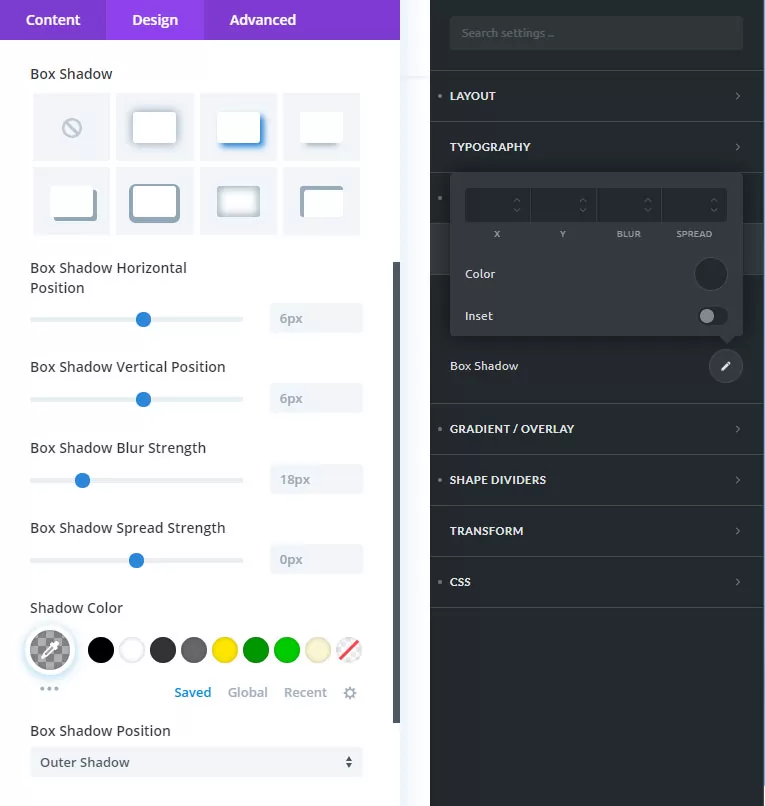
To illustrate this, I’ve included a screenshot below showing the shadow settings in Divi (left) and Bricks (right). In Divi, you first choose one of eight preset images at the top, after which the other options appear to fine-tune the shadow.
In Bricks Builder, you only see a few input fields where you manually enter values for X, Y, blur, and spread. The same applies to things like shape dividers, animations, and transform effects. For example, if you want to set a shape divider in Divi, you simply choose from a set of visual presets. In Bricks (and Elementor), you instead see a list of names like waves, clouds, drops, and so on.
Pricing
When Bricks Builder was first launched (and when I bought my license 😀 ), they offered a very attractive lifetime deal for “early adopters”. For just $59 you got a license for 1 website with lifetime updates and support, and for $149 you could use Bricks on up to 1,000 websites.
Those prices have since increased significantly, but so has the number of features of course. At the moment, a lifetime license costs $599 for unlimited websites, although annual subscriptions are also available from $ 79 per year.
That is somewhat higher than most other builders, and if you only want to build your own website, a lifetime license like that can feel quite expensive. But Bricks is aimed at professionals who build websites for clients, and in that context, investing in such a powerful tool makes a lot of sense.


Leave a Reply